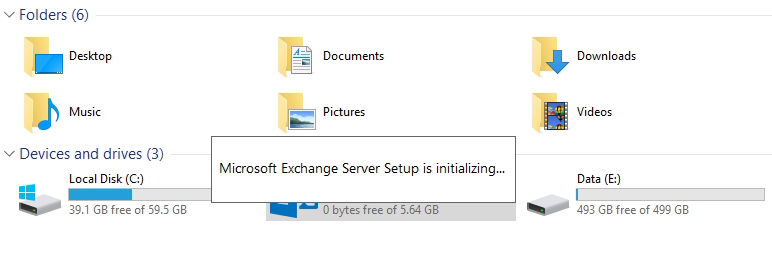
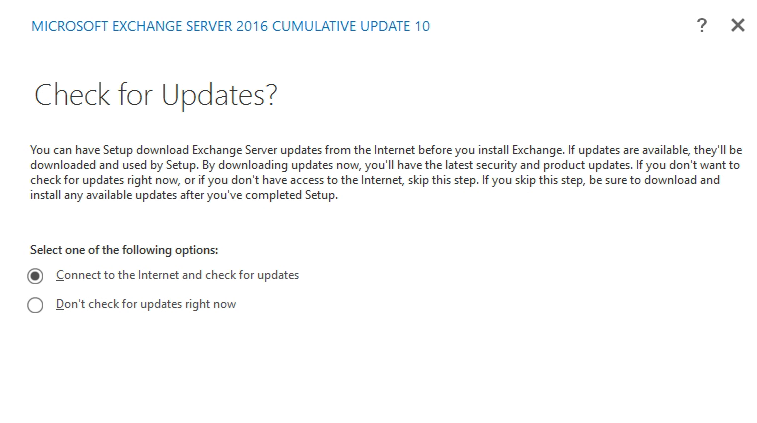
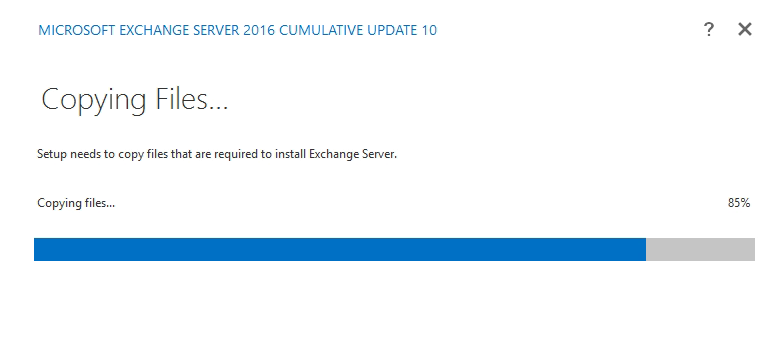
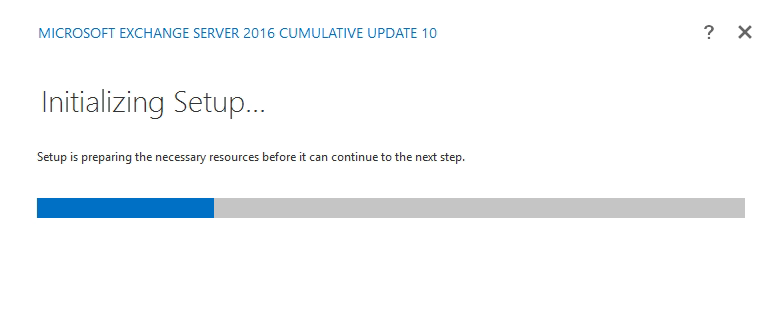
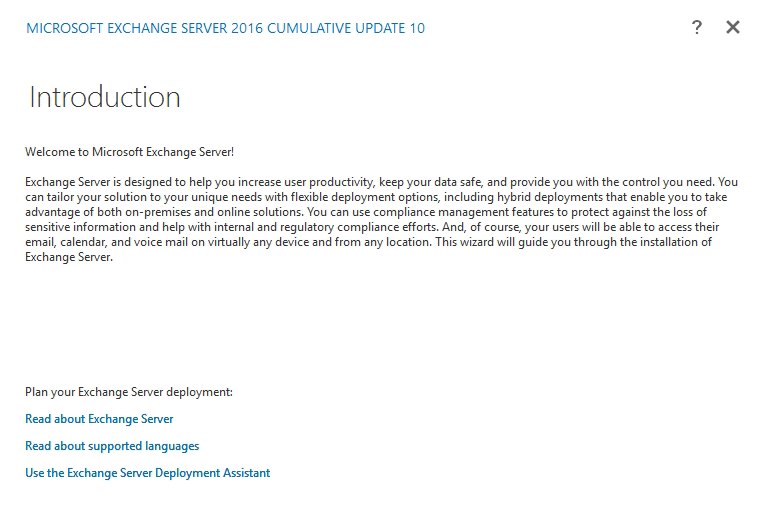
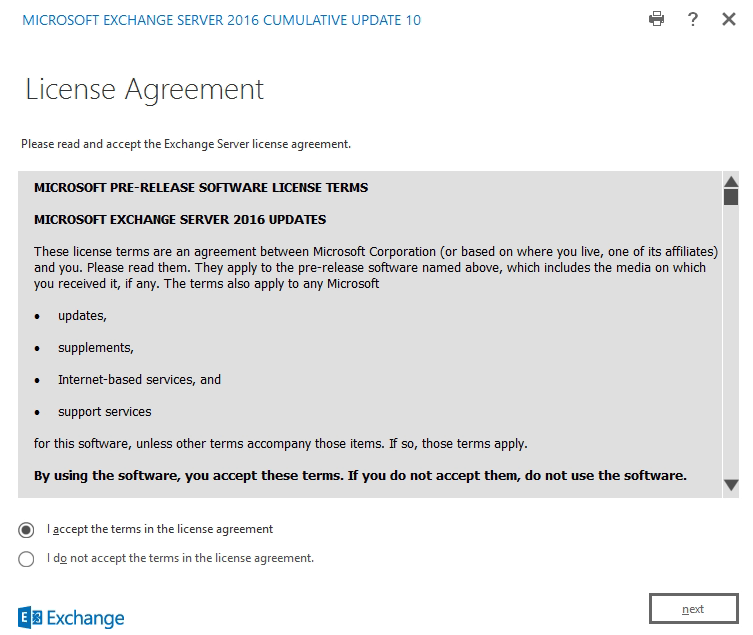
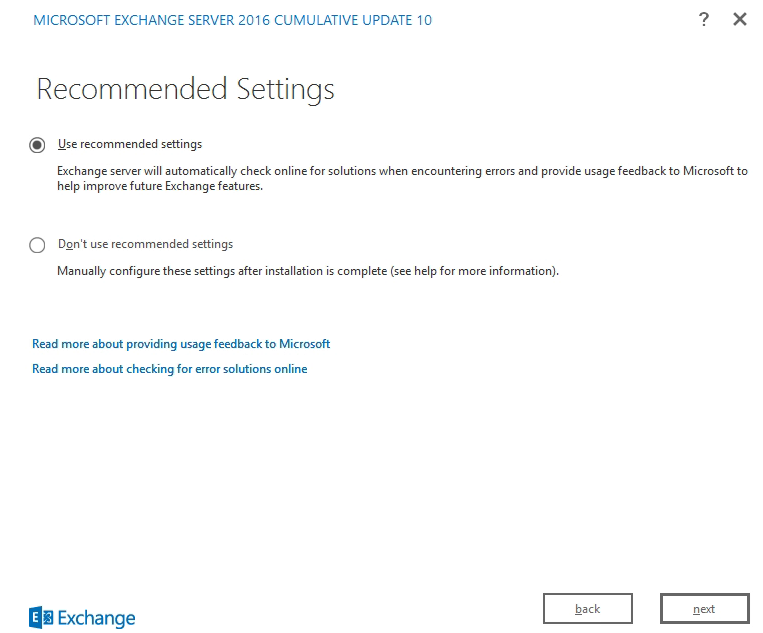
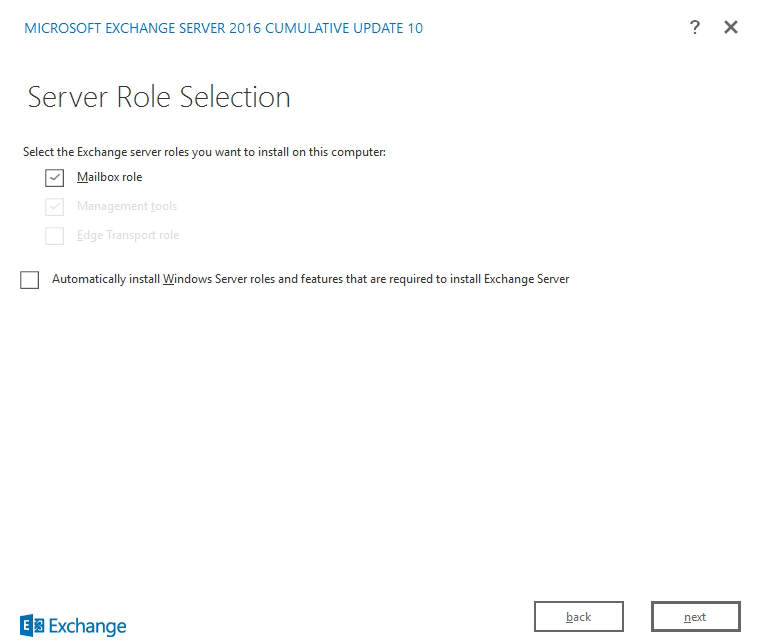
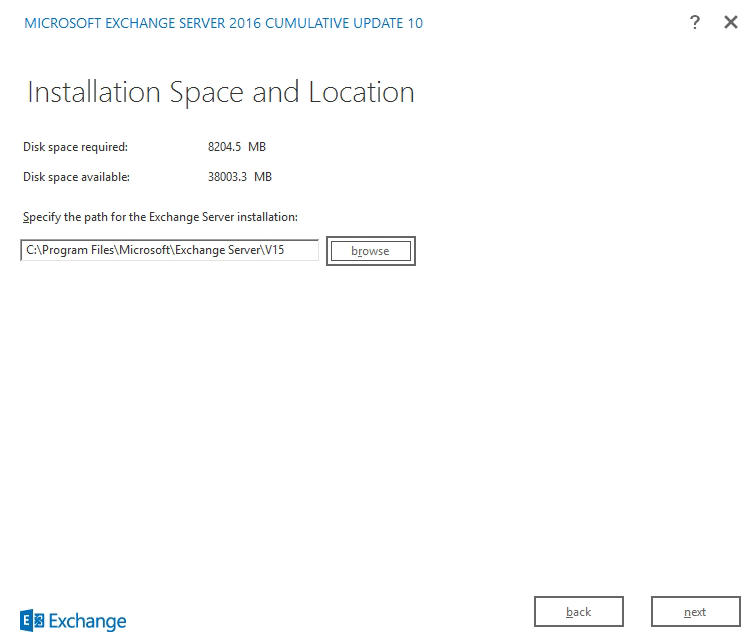
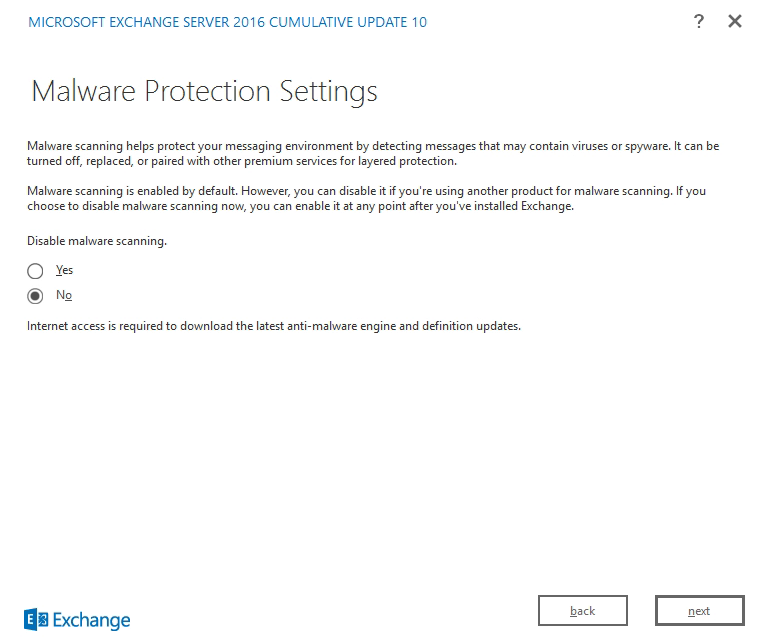
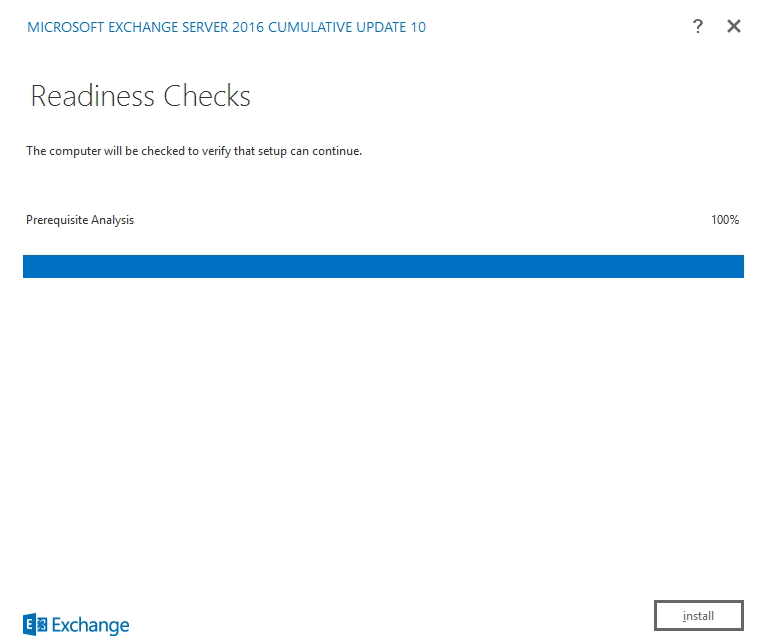
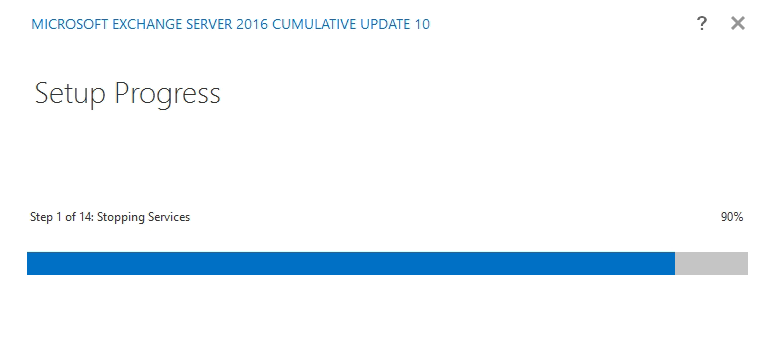
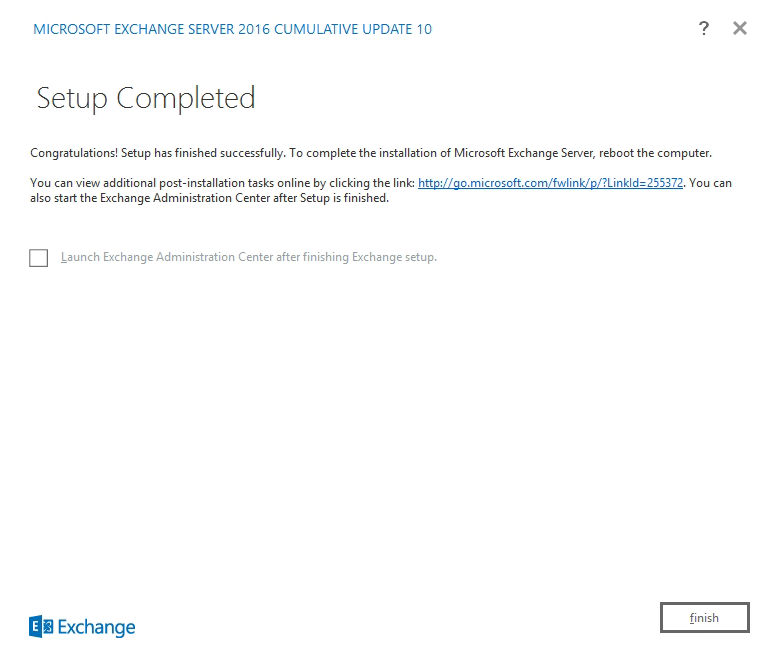
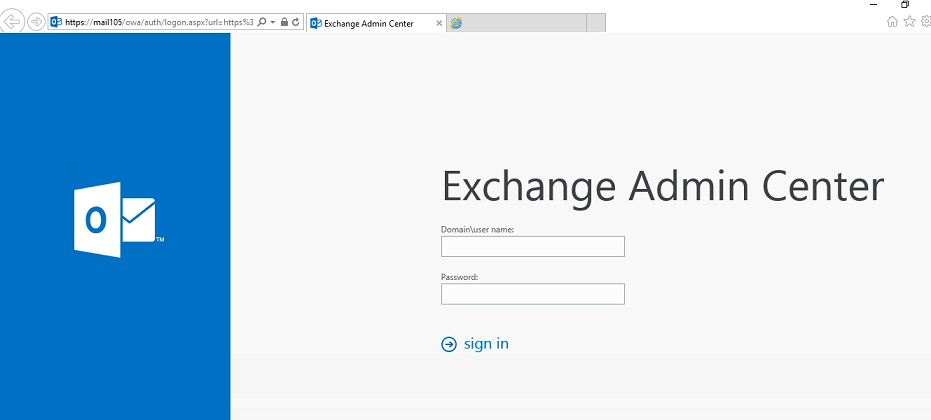
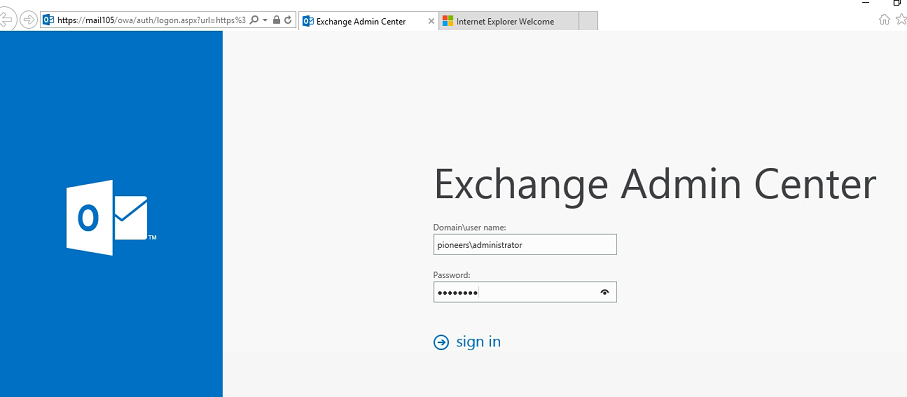
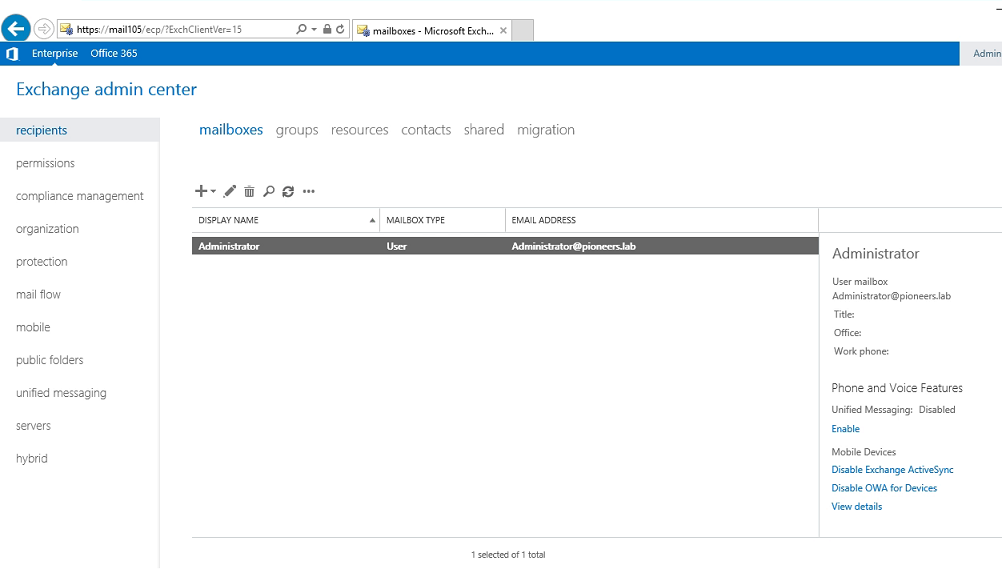
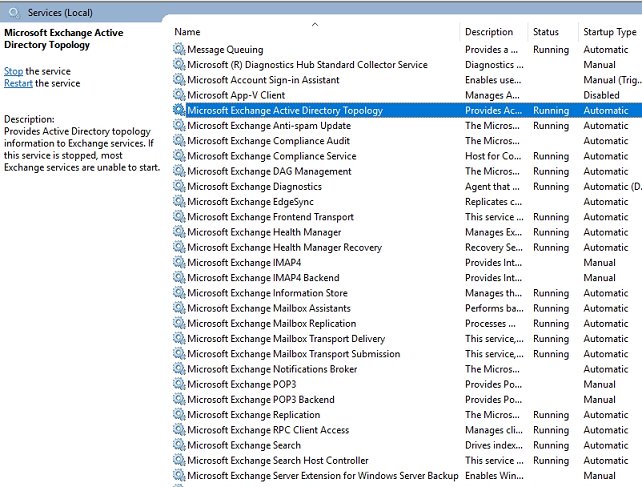
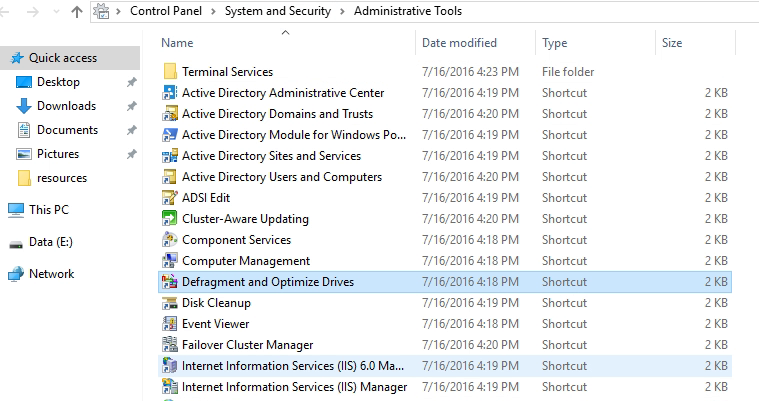
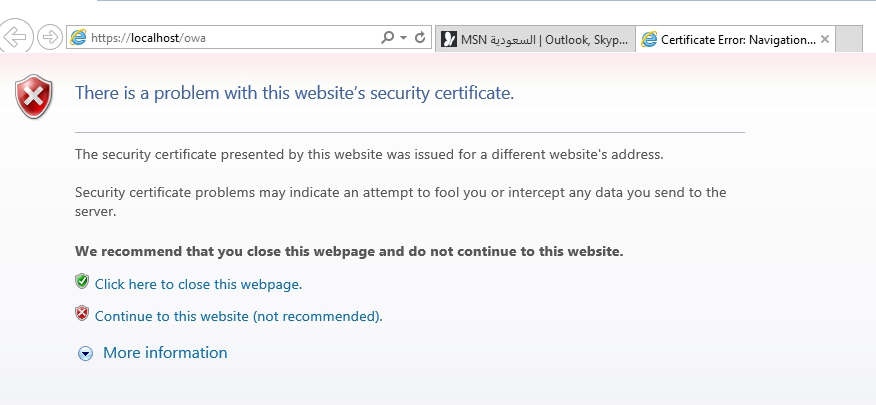
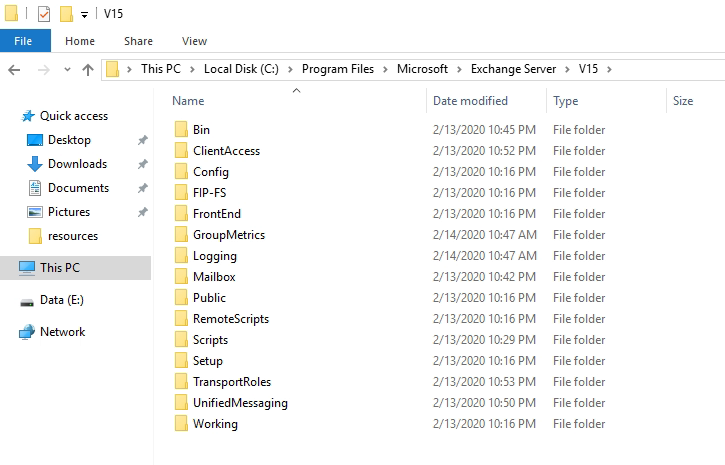
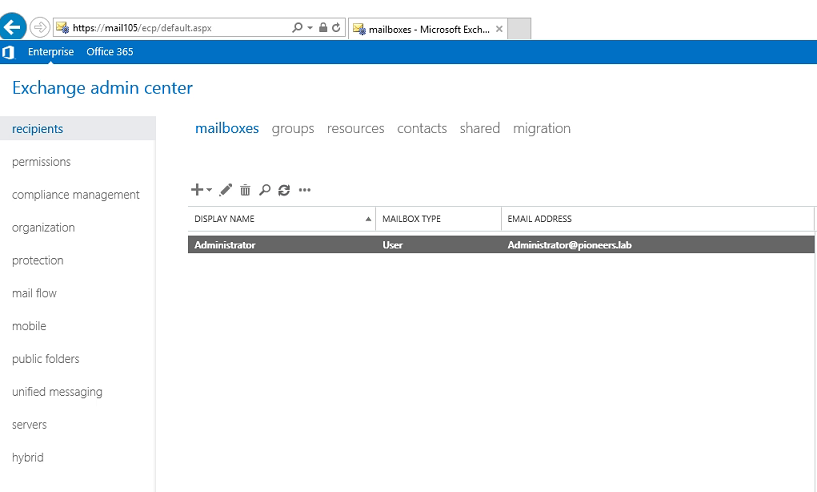
Exchange Installation Part II : installation Process Exchange April 5, 2020November 29, 2020 maher islaieh installation process server [Mail105.pioneers.lab ] is ready to install Exchange server 2016 insert Exchange 2016 in DVD or copy it’s contents to local drive C:\Resources double click exchange DVD to tart installation process check for updae downloading update if available For Better View > Open Image in different TAB NO update found initialize Setup setup wizard accept agreement select recommended settings as we discuss in installation part one : this server will be mailbox server installation path don'e disable Anti-malware checking prerequisites install exchange process get progress after 30-40 minute > installation completed open Exchange Admin center https://Mail105/ecp > please note ecp stamd for exchange control panel set time zone Exchange admin center view Verify Exchange Installation after exchange 2016 has been successfully installed it’s time to verify installation [ as we usually do after each installation ] exchange services open IIS manager console check Exchange sites currently exchange use self signed certificate > later we will install ADCS for SSL installation path Exchange Admin center Console next article we will discuss post installation tasks thank you join us –maher islaieh