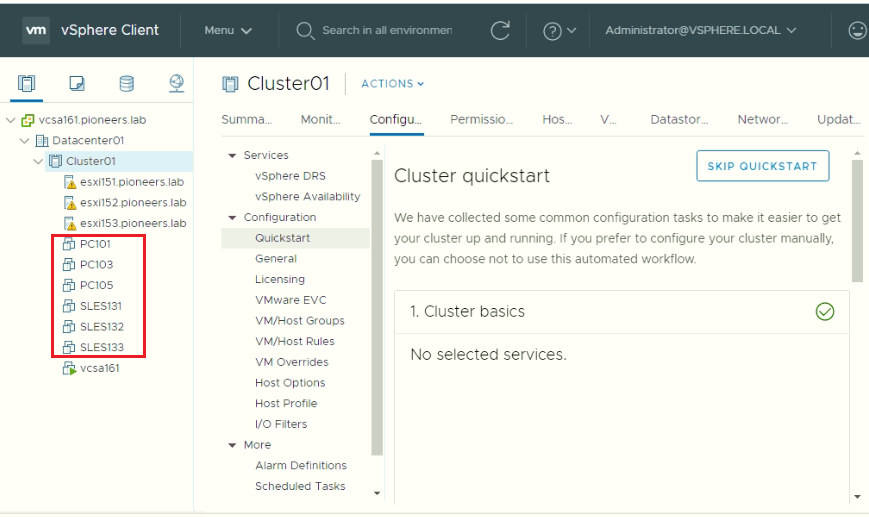
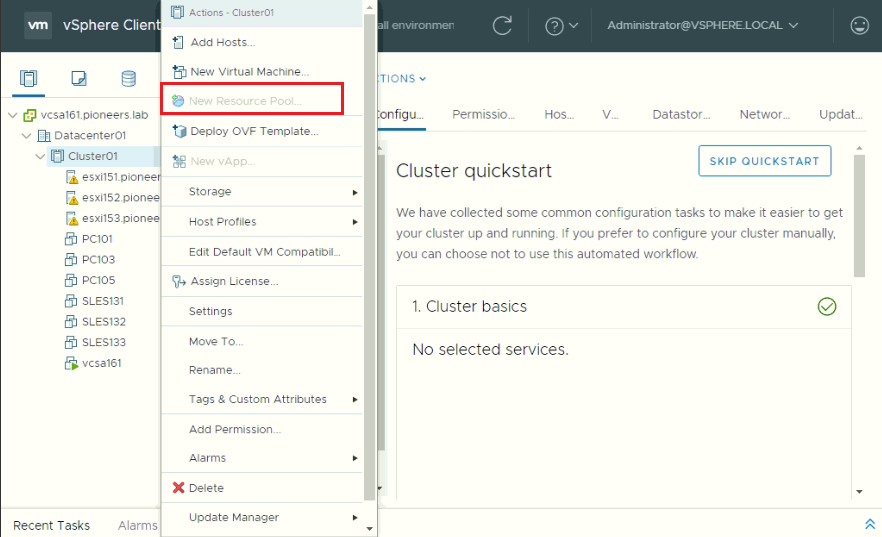
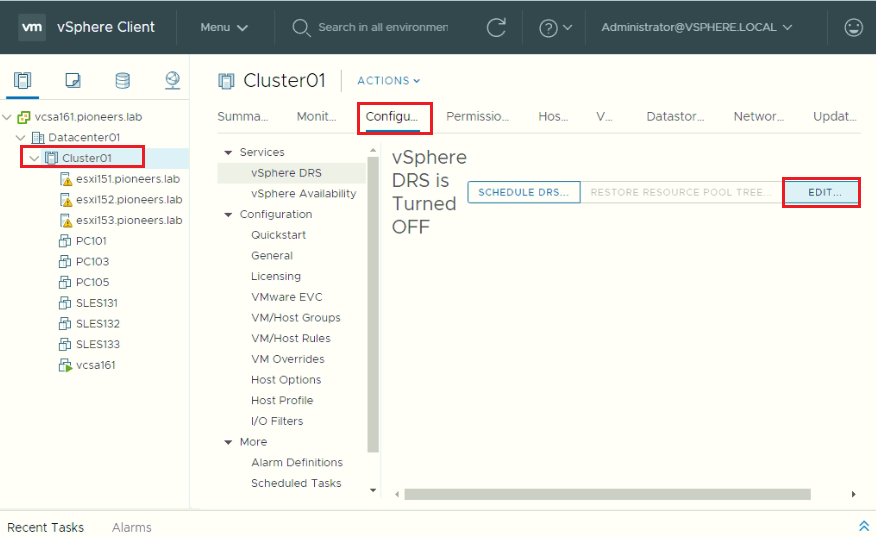
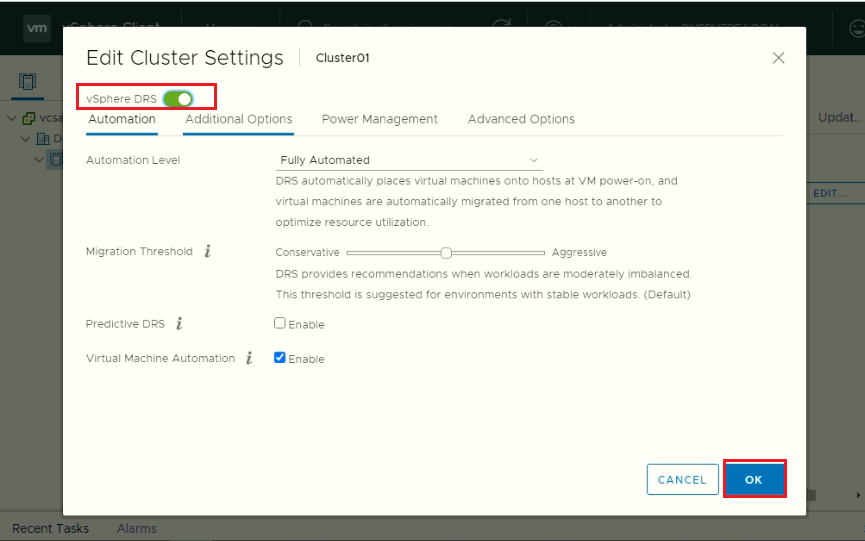
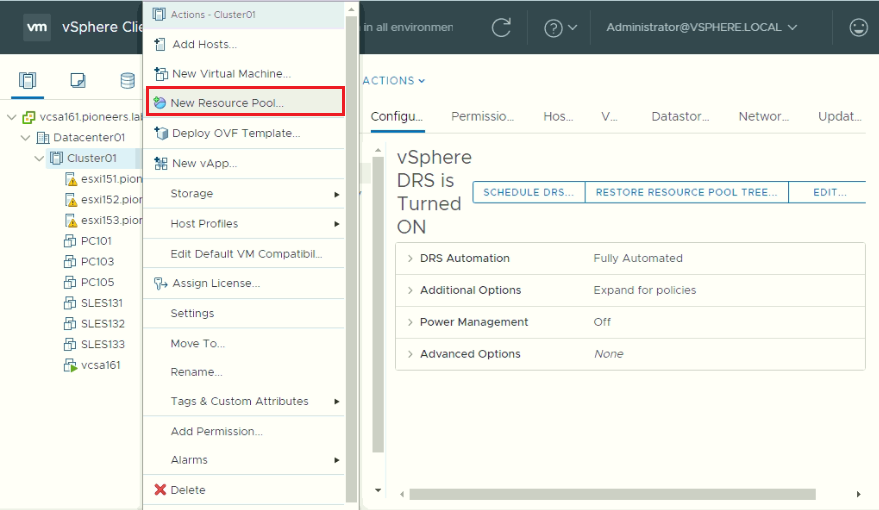
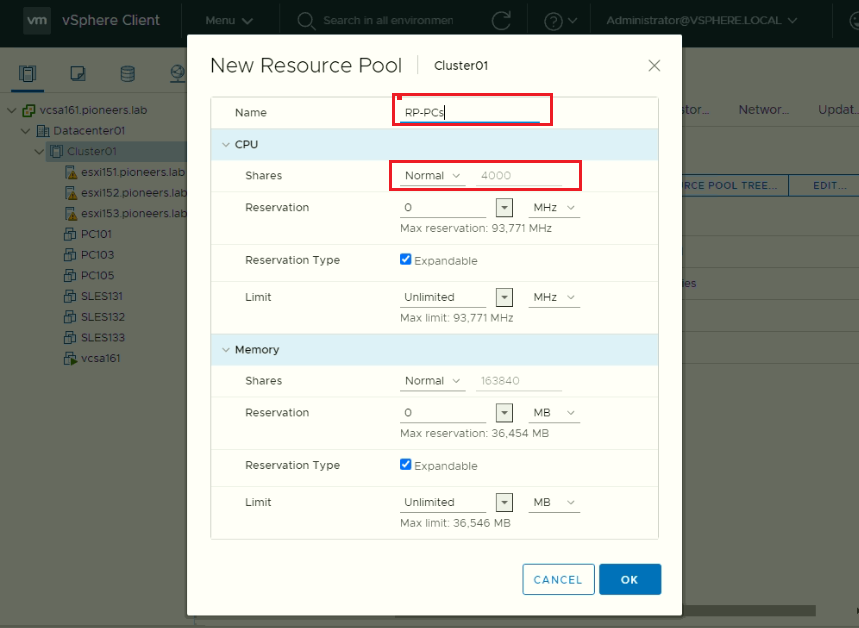
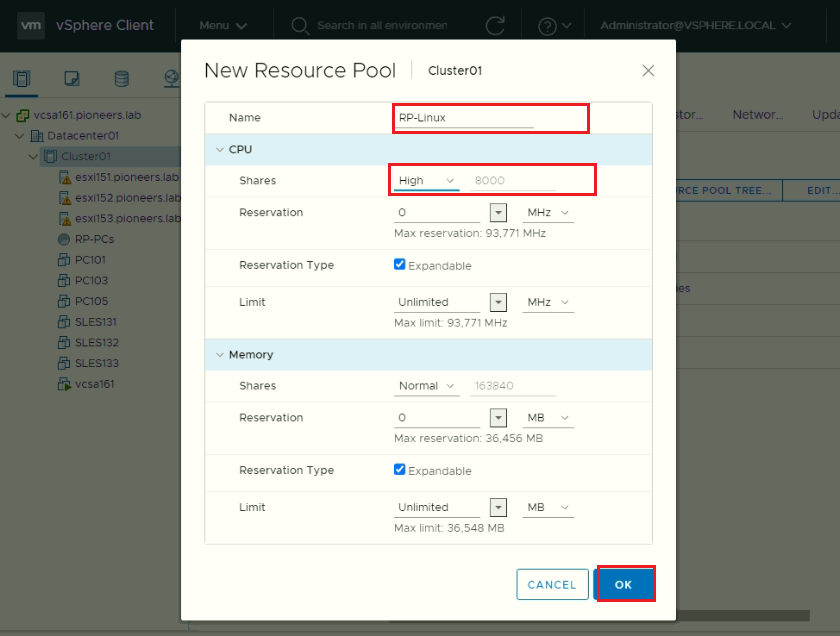
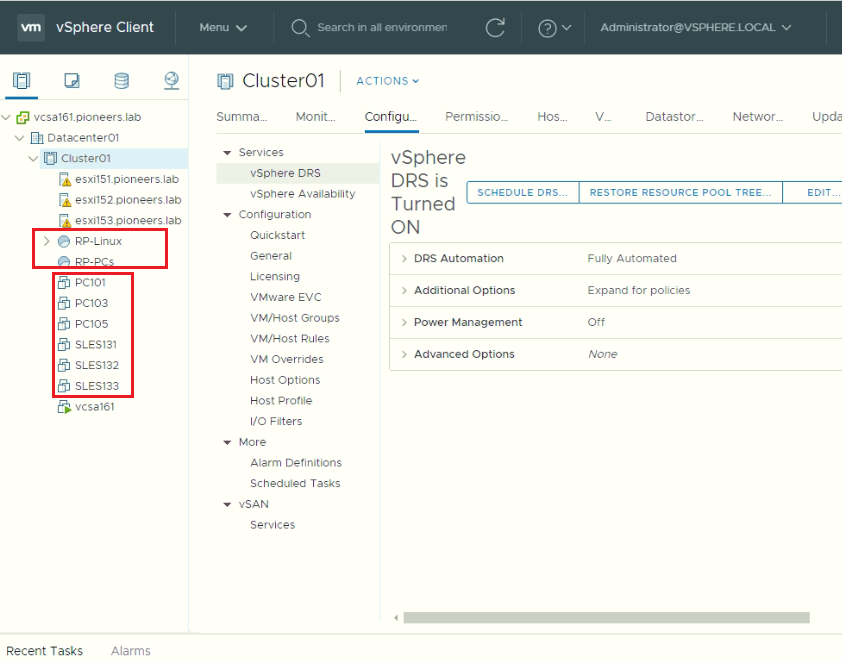
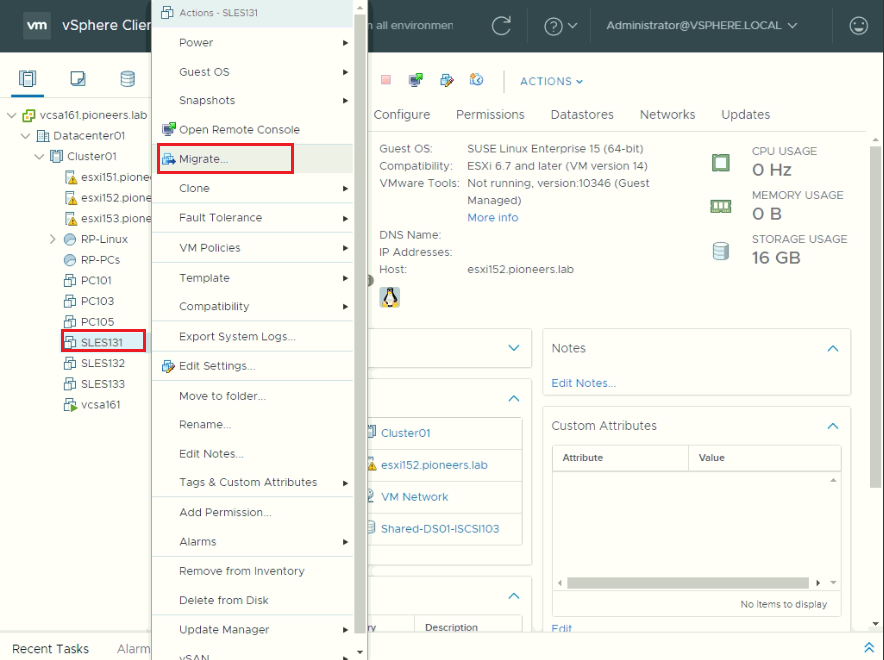
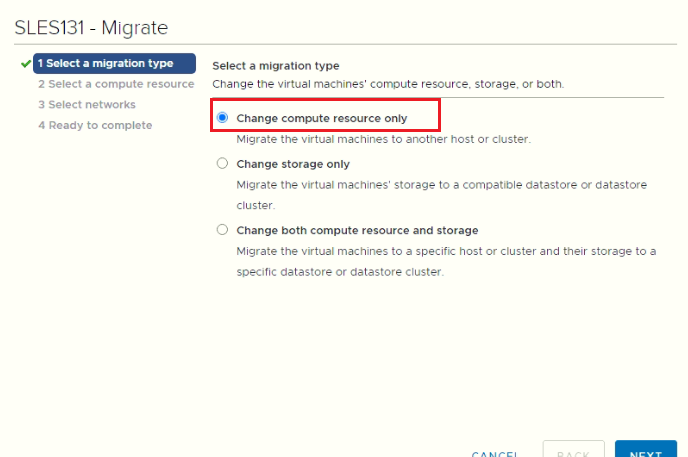
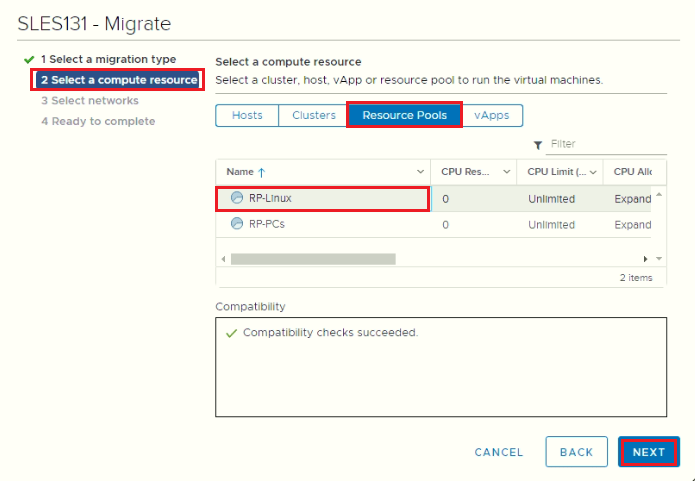
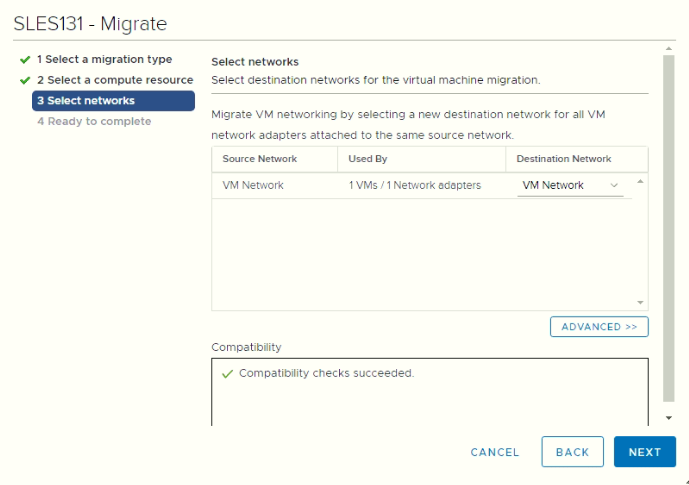
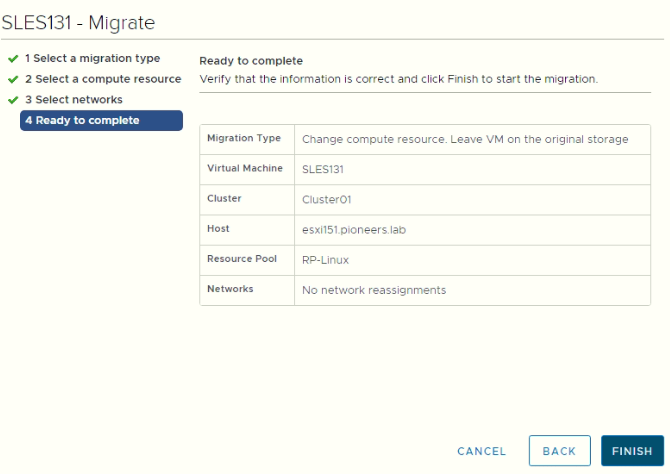
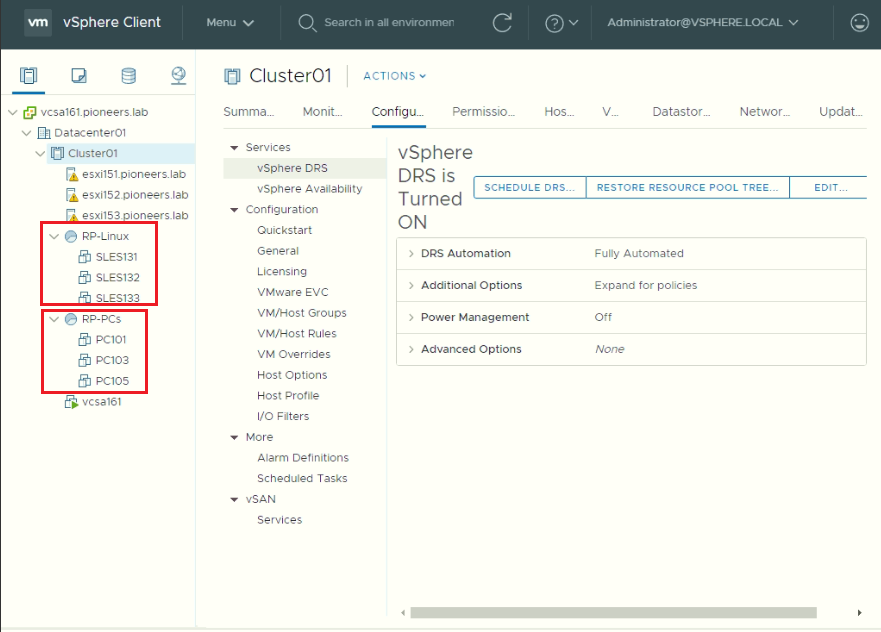
Resources Pool Part II : Configure and Manage vSphere-O&S July 3, 2020July 4, 2020 maher islaieh introduction in previous article we have got an overview of resource pool this article we will discuss how to configure resource pool in vsphere environment network diagram For Better View > Open Image in different TAB please have a look to above network diagram we have vsphere environment which include 6 Virtual machines :3 windows 10 VMs :PC101 PC103PC1053 Suse Linux VMs :SLES131SLES132SLES133we will create resources pools :RP-PCs with normal option and contain windows 10 VMs RP-Linux with High option and contain Suse Linux VMs For Better View > Open Image in different TAB enable DRS as we mentioned in previous article : we have to enable DRS Distributed Resource Scheduler on cluster level by default DRS is disabledso we are unable to create resource pool as seen below For Better View > Open Image in different TAB to enable DRS : open vCenter > cluster > configure > DRS > edit > enable DRS For Better View > Open Image in different TAB For Better View > Open Image in different TAB create resource pool after we enable DRS : we can create resource pool right click on cluster > new resource pool For Better View > Open Image in different TAB create resource pool RP-PCs with share normal create resource pool RP-Linux with share high new have 2 resource pool > but VMs still out of resource pool move VM to resource pool after we created resource pool : its time to move each VM to it’s resource poolright click on VM > migrate right click on VM > migrate migrate compute resource only from resource pool TAB > select resource pool next finish repeat same step to move ALL VMs