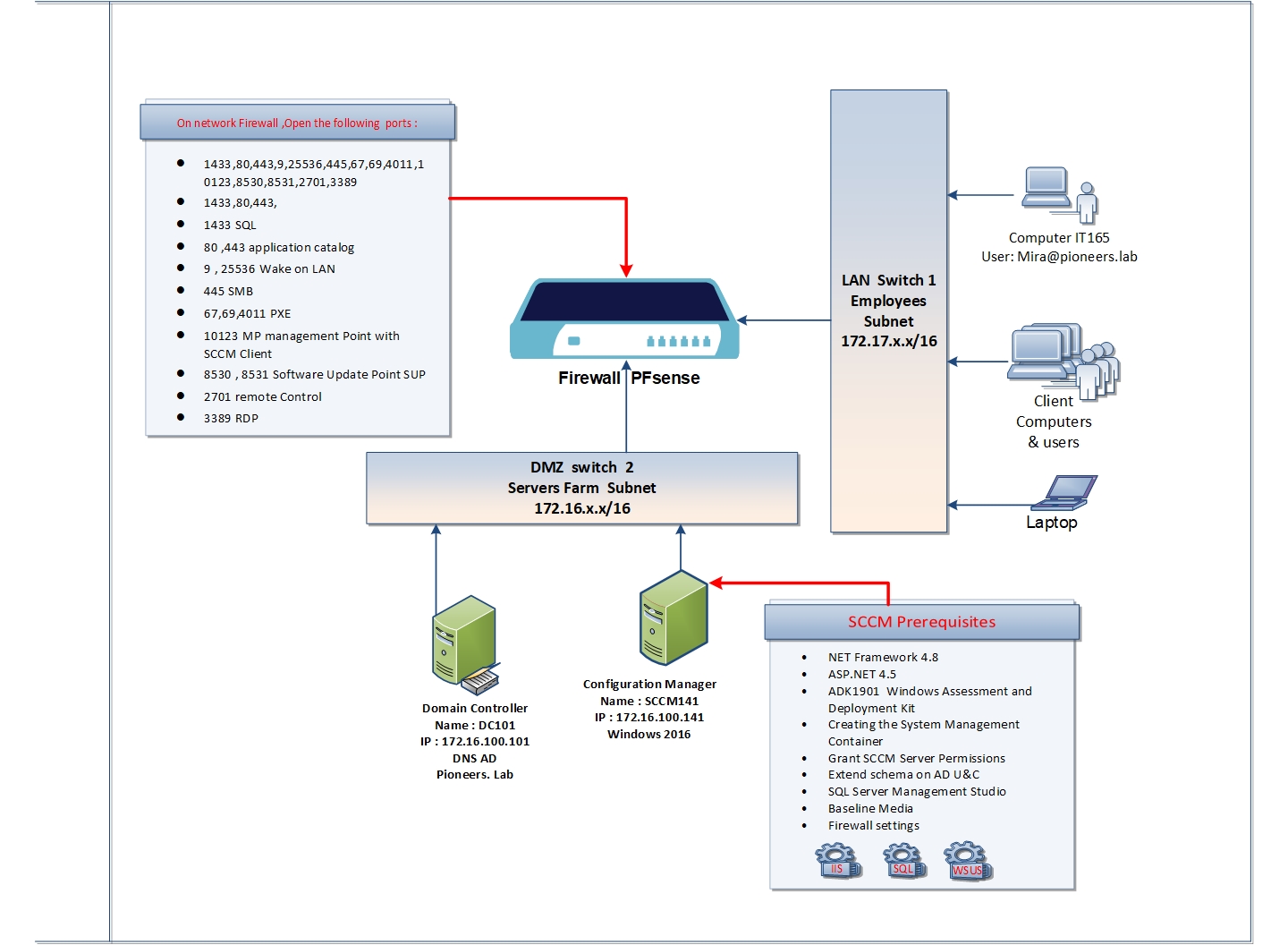
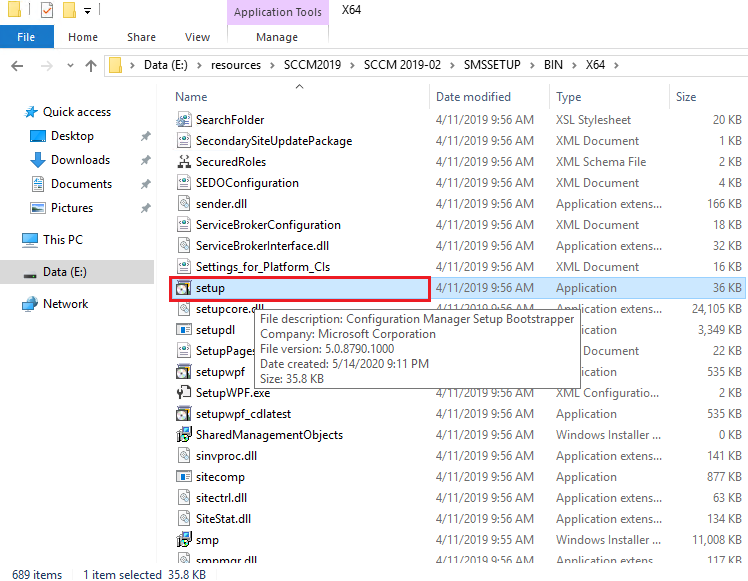
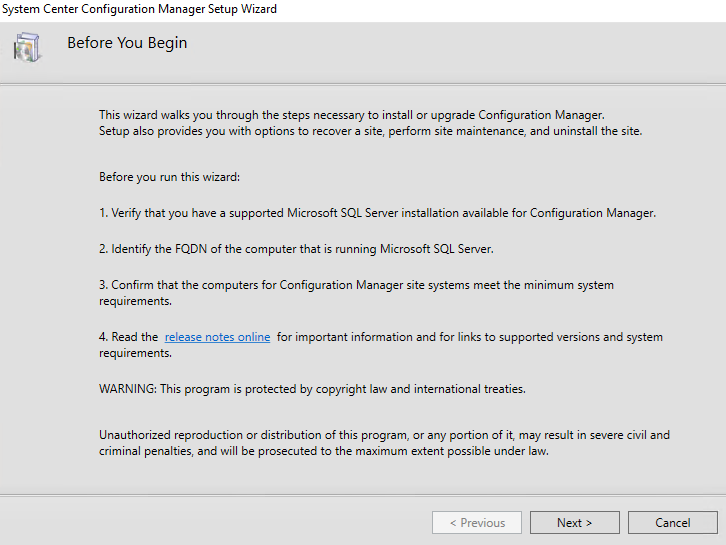
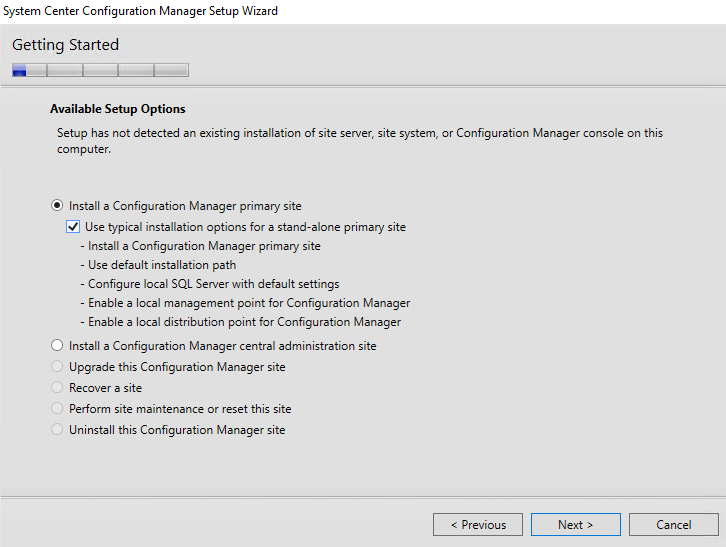
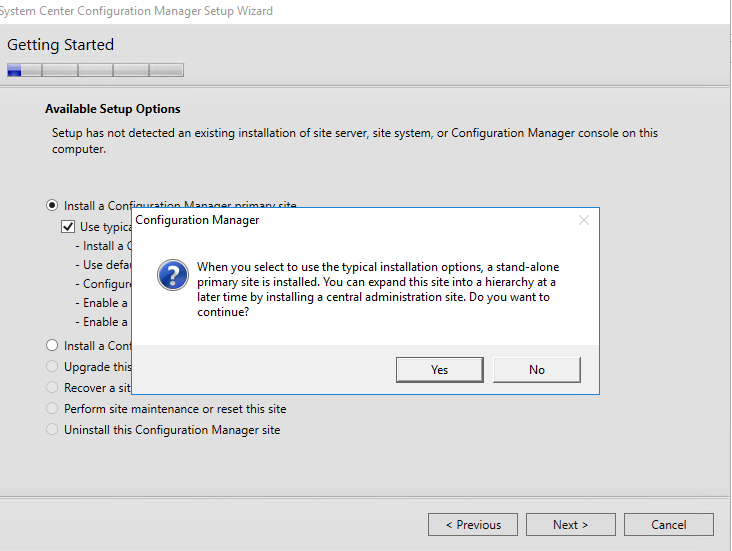
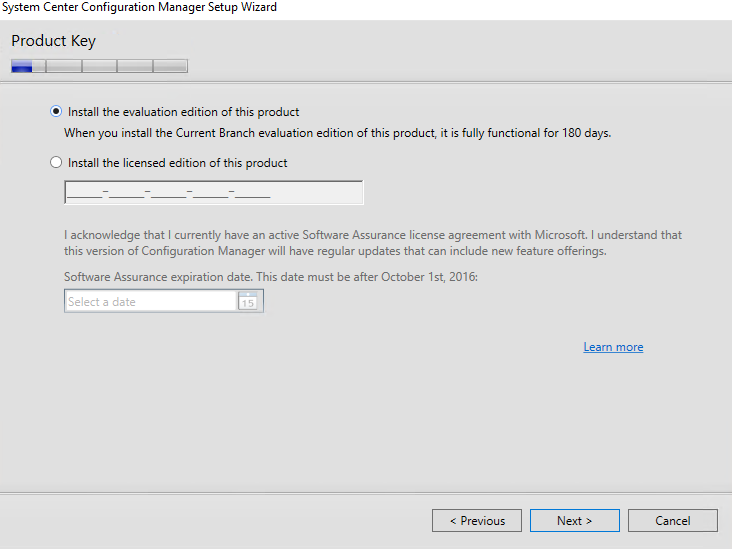
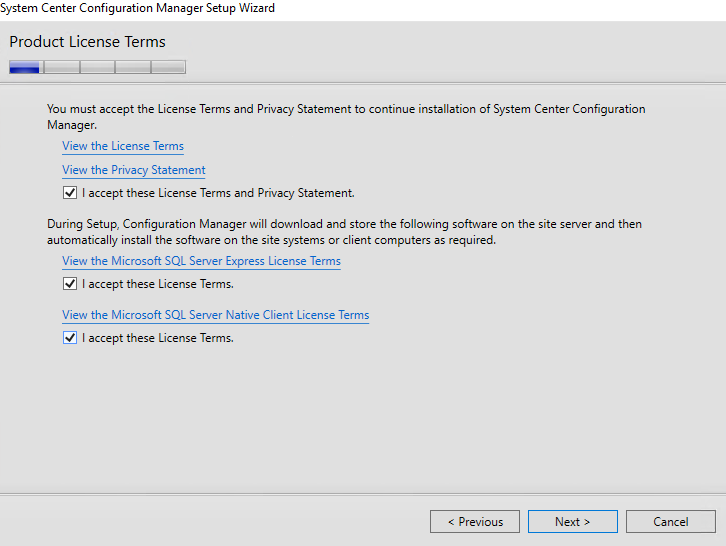
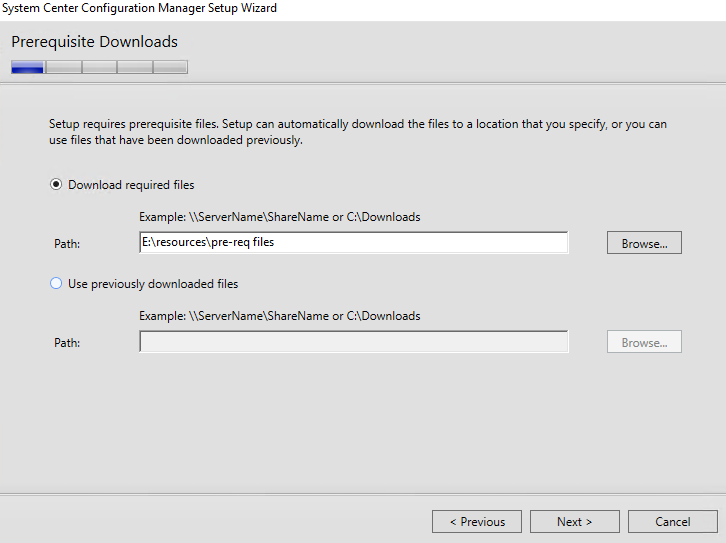
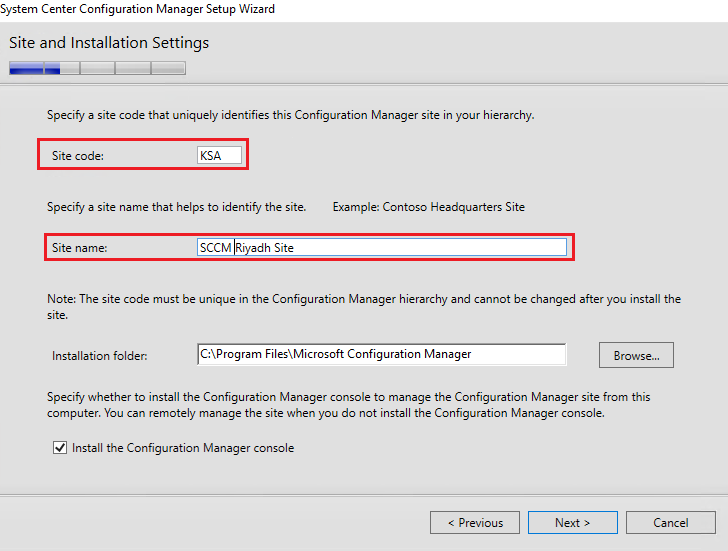
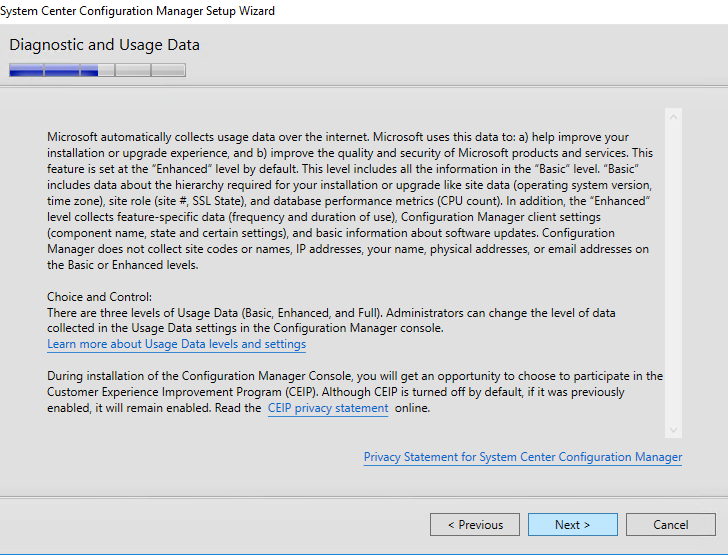
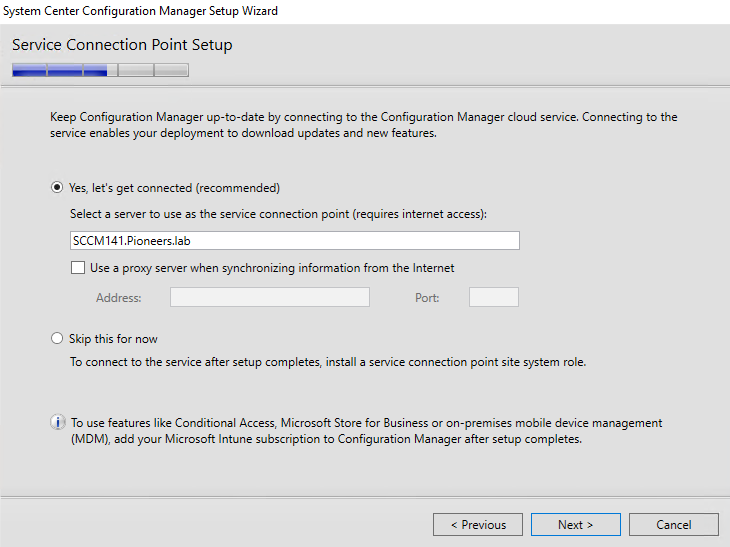
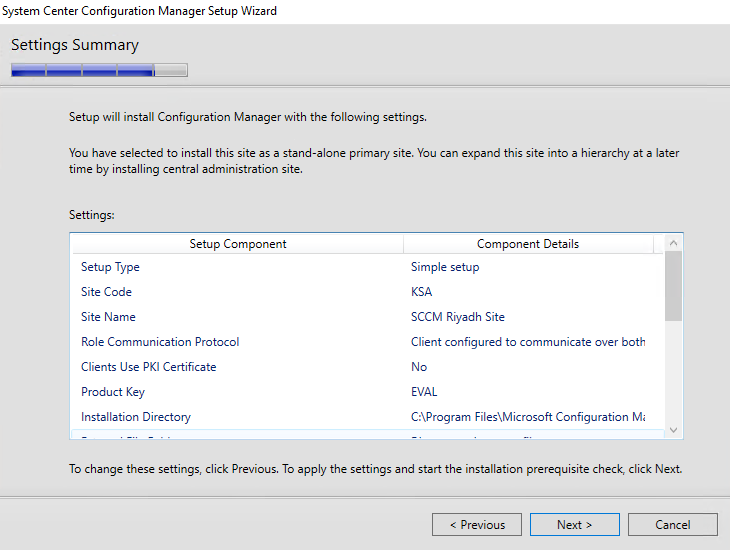
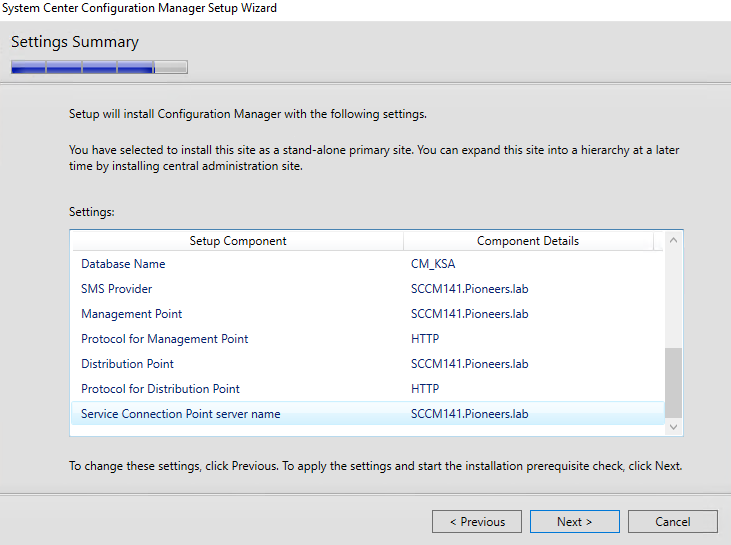
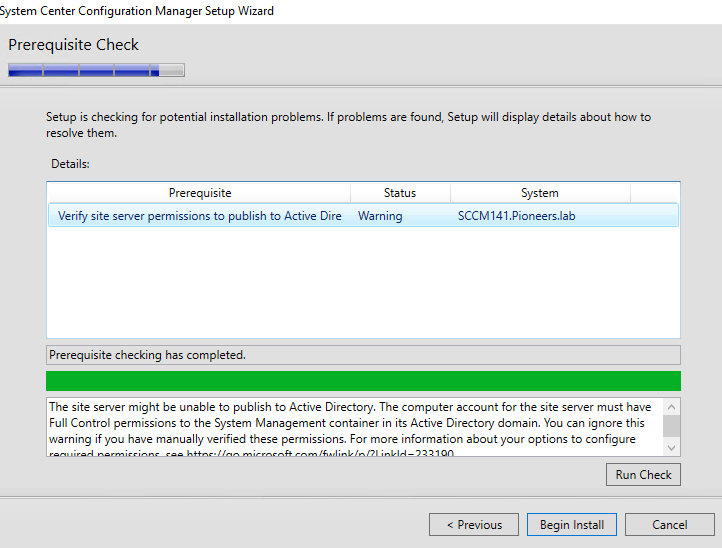
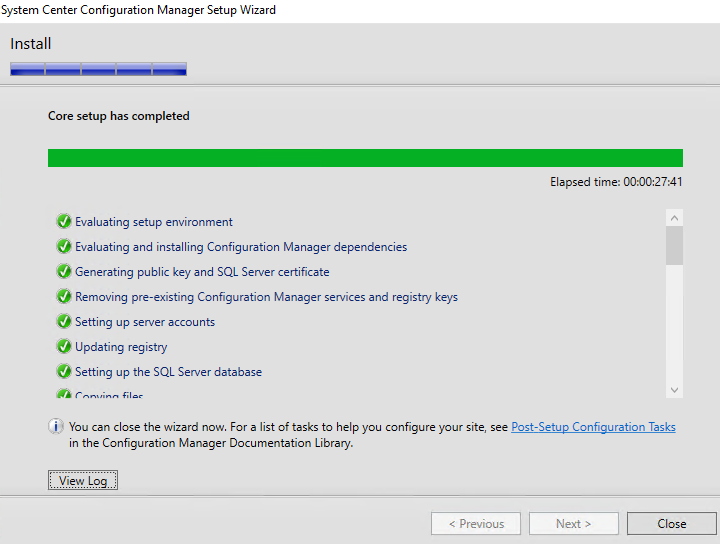
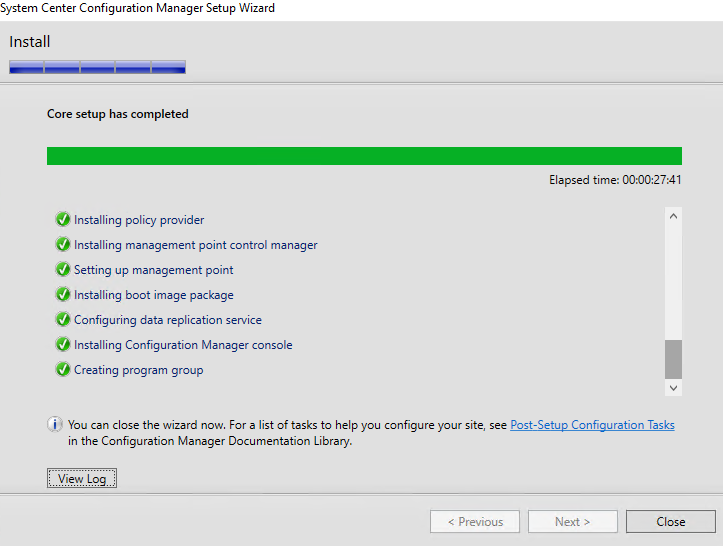
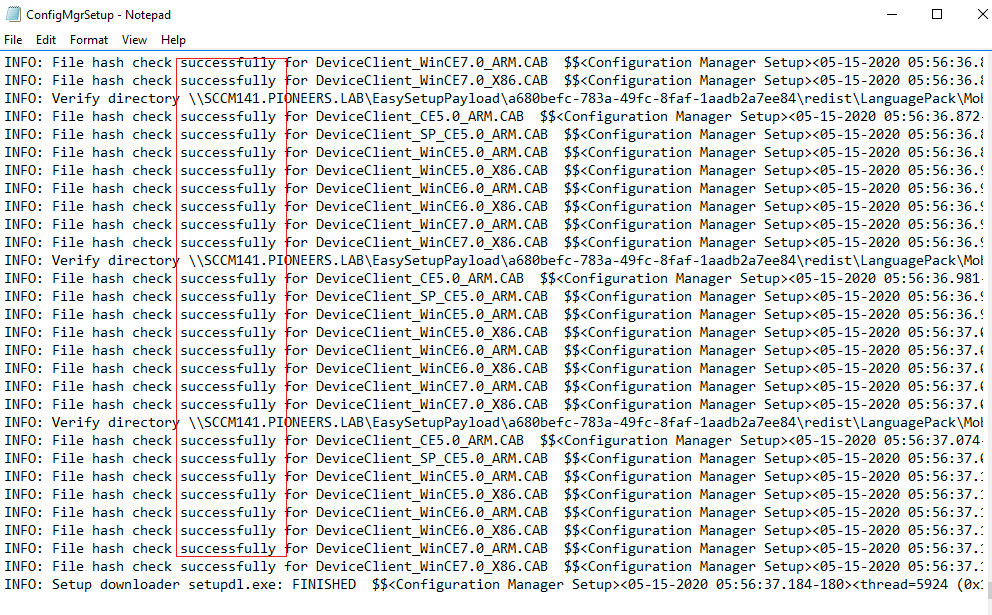
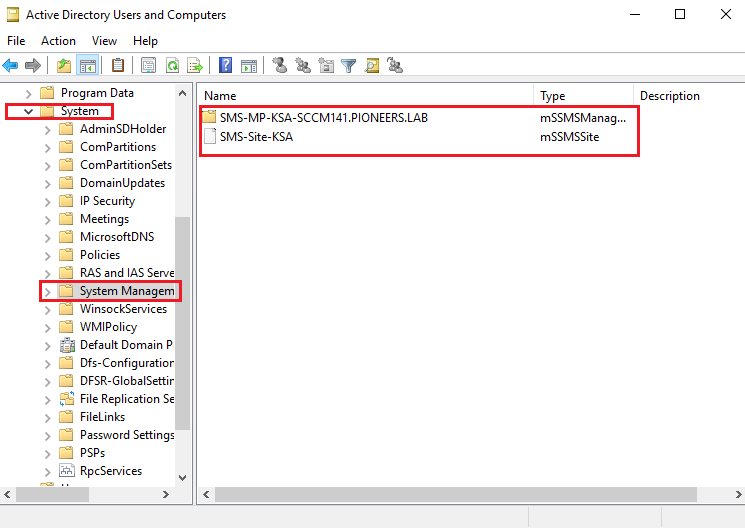
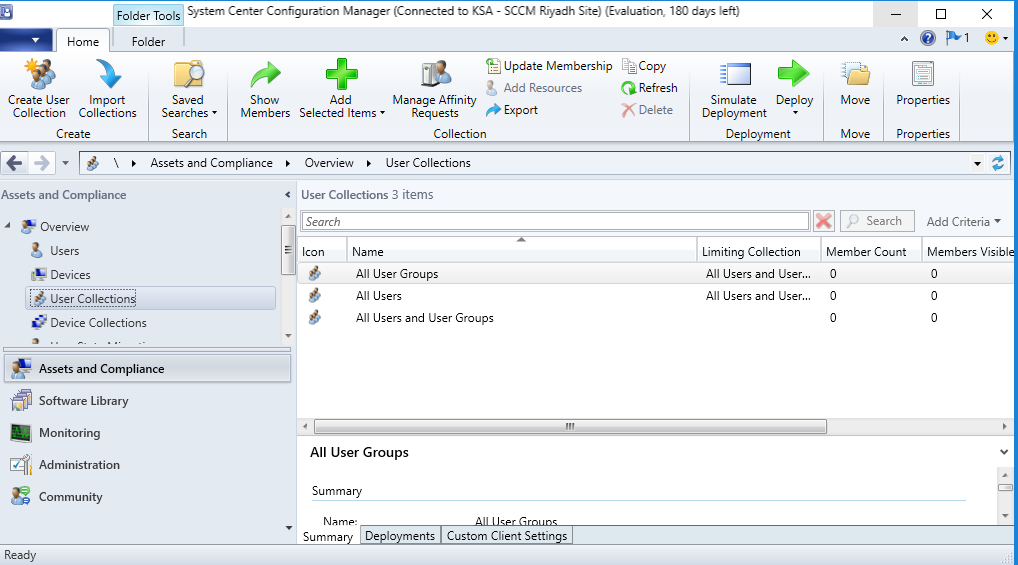
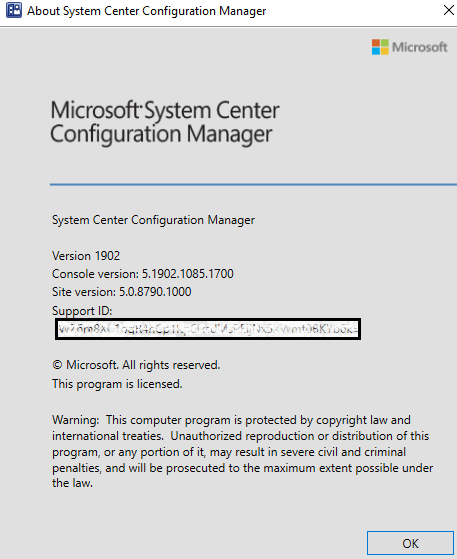
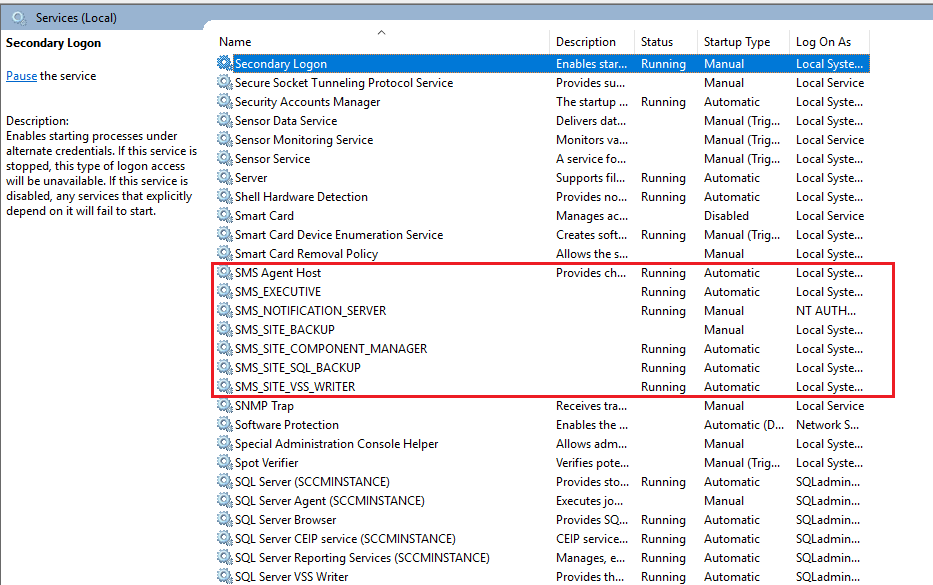
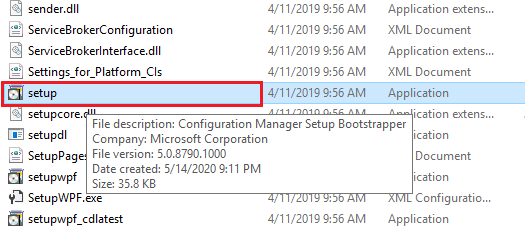
Install SCCM 1902 SCCM May 14, 2020November 29, 2020 maher islaieh introduction in previous article : we have discussed the first part of prerequisites of SCCM Server Identity Server SpecificationsCreate container system management in ADGrant SCCM Server privileges on Container[System Management ]Extending Active Directory SchemaInstall Web Server IISInstalling Windows ADKopen SCCM port create account to manage SQL services install SQL 2016 install SQL management studio install WSUS now server is ready to install SCCM please keep with us this article to see how to install SCCM SCCM installation Diagram SCCM installation Diagram please have a look to network diagram above Configuration Manager will be installed on windows 2016 server with the following specification name SCCM141.pioneers.lab RAM 11 GB first HDD 100GB for OS second HDD 500 GB for Data and update IP address : 172.16.100.141 subnet mask 255.255.0.0default gateway : 172.16.100.11DNS server : 172.16.100.101domain name : pioneers.lab Download SCCM 1902 Baseline Media you can download SCCM 1902 from Microsoft EvalCenter.or you can get your open license copy if you are VLSC and MSDN customers . now open DVD and run setup open Media and run setup next you can choose typical installation or custom accept warning if you have license key insert it > or select evaluation accept all agreement if you have download required file previously select below > or let to download required files site code is very important next next review and next review and next ignore tiny warning > AD schema has been published successfully > we will see that when verify installation For installation succeeded View For installation succeeded View 🙂 verify SCCM installation there is many different methods to verify SCCM successful installation below some of it open log file open AD > system > system management > AD published open SQL > new DB called CM_KSA > stand ffor configuration manager then site code open configuration manager console it self check version check services are running Conclusion in this article : SCCM 1902 has been installed and verified successfullynext article is the last one of SCCM installation series , which talk about SCCM post installation