In previous article we have discussed how to join ESXI host to Active Directory
This article >> we will discuss how to join VCenter to Active Directory
VCSA and Vcenter Application
Before diving inside configure vCenter with Active directory >> we have distinguish between VCSA and vCenter as application
VCSA [ vCenter server appliance ] :
is Linux operating system with distribution photon from VMWARE
Used to run vCenter application
Manage by account root
To manage VCSA : use YRL https://serveripaddress : 5480 for example our VCSA called VCSA161 >> we can login to appliance management by https://172.16.100.161 or https://VCSA161:5480 if DNS is configured properly
vCenter as application
Application installed in VCSA
Used to manage ALL ESXI host in vSphere environment
During installation : setup create domain called [ vsphere.local ] for authentication
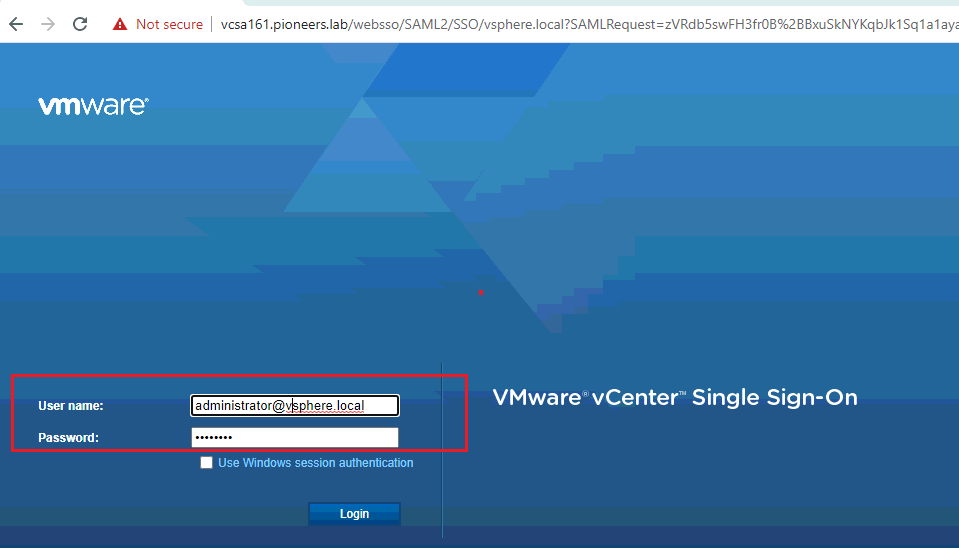
Managed by account administrator@vsphere.local
To manage vCenter : use YRL https://serveripaddress : 433 for example our VCSA called VCSA161 >> we can login to appliance management by https://172.16.100.161:443 or https://VCSA161:443 if DNS is configured properly
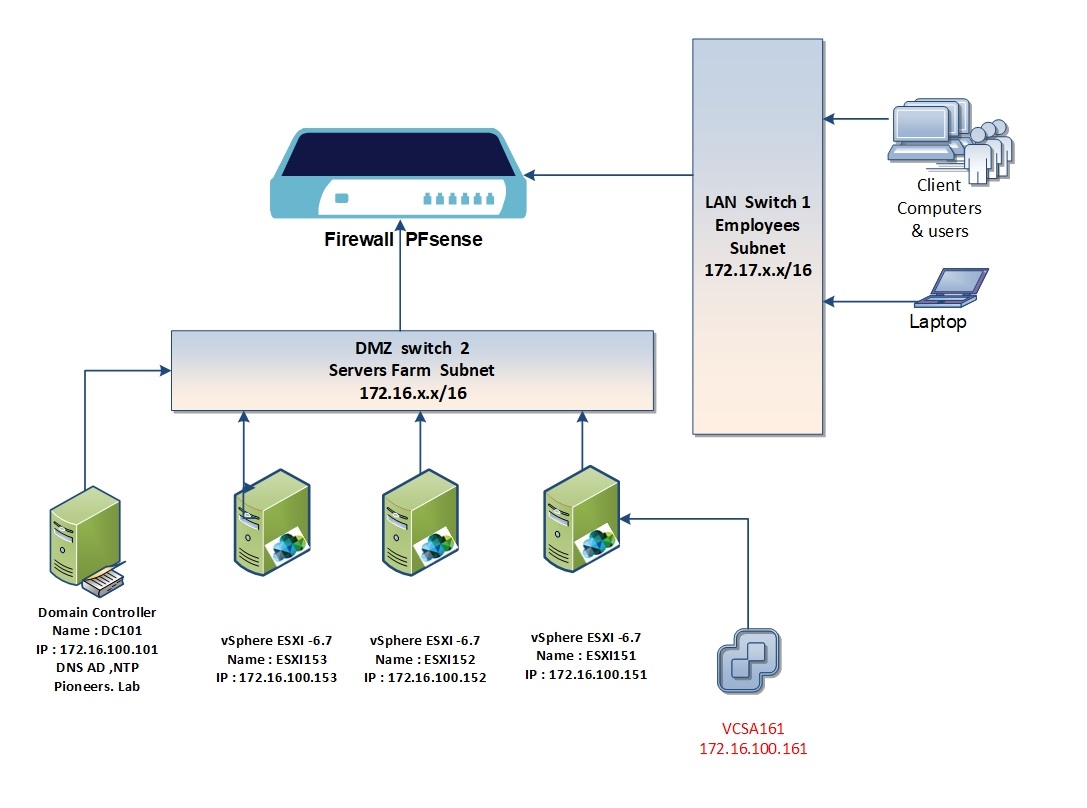
vcenter network diagram
For Better View > Open Image in different TAB
to understand the situation , please have a look to network diagram above
we have domain controller DC101.pioneer.lab with the following
IP address : 172.16.100.101
services : DC for AD pioneers.lab
DNS for domain Pioneers.lab
NTP server to synchronize time with other environment servers
also we 3 ESXI servers
ESXI151 with IP address 172.16.100.151
ESXI152 with IP address 172.16.100.152
ESXI153 with IP address 172.16.100.153
also 1 VCSA server installed on ESXI151
IP address 172.16.100.161
vcenter application with default domain authentication administrator@vsphere.local
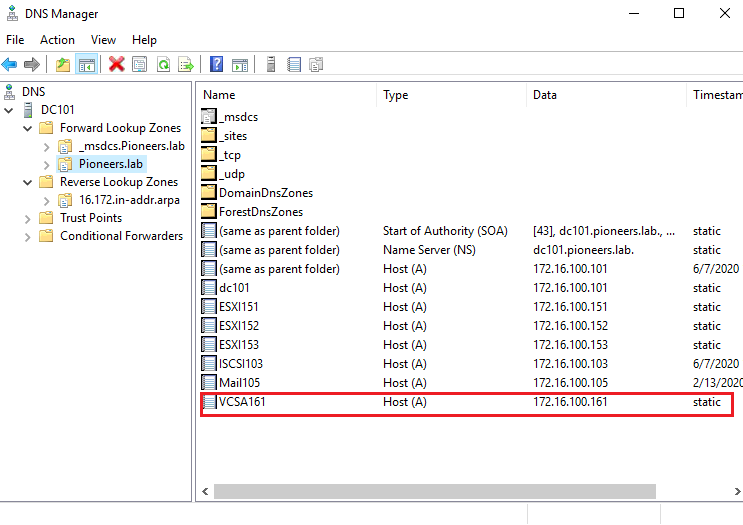
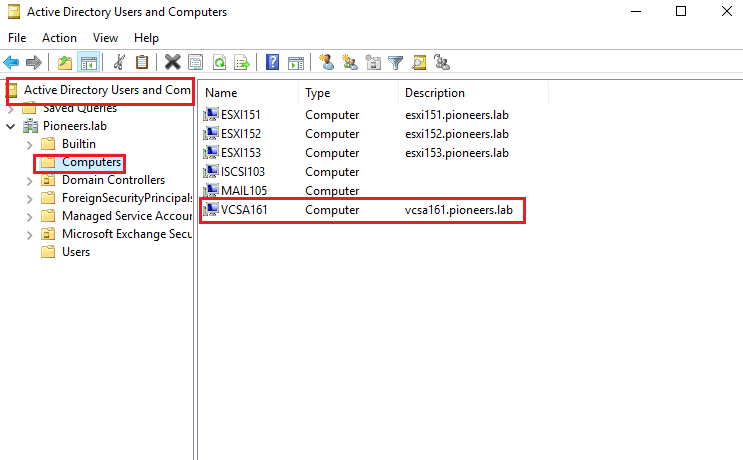
Step01 : create DNS record
this first step is to create A host record for VCSA in DNS
For Better View > Open Image in different TAB
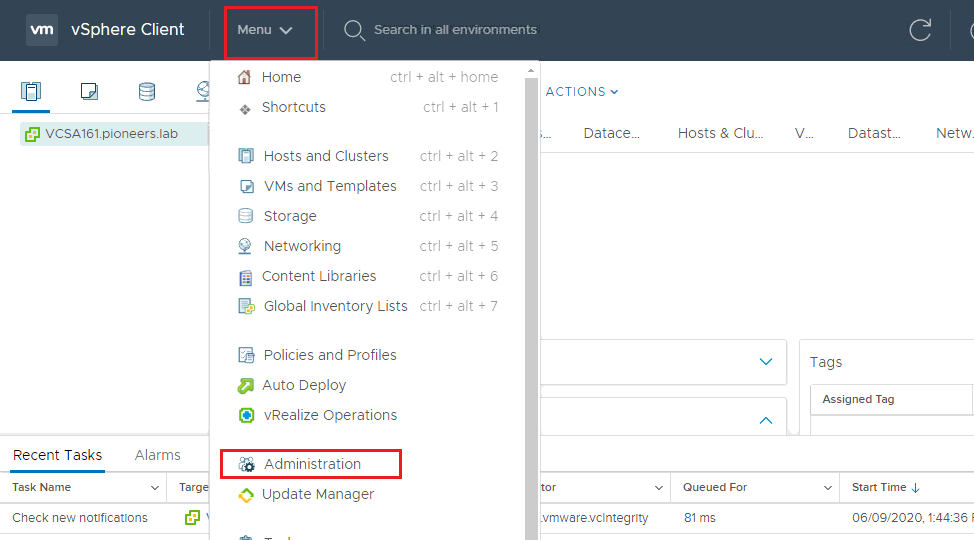
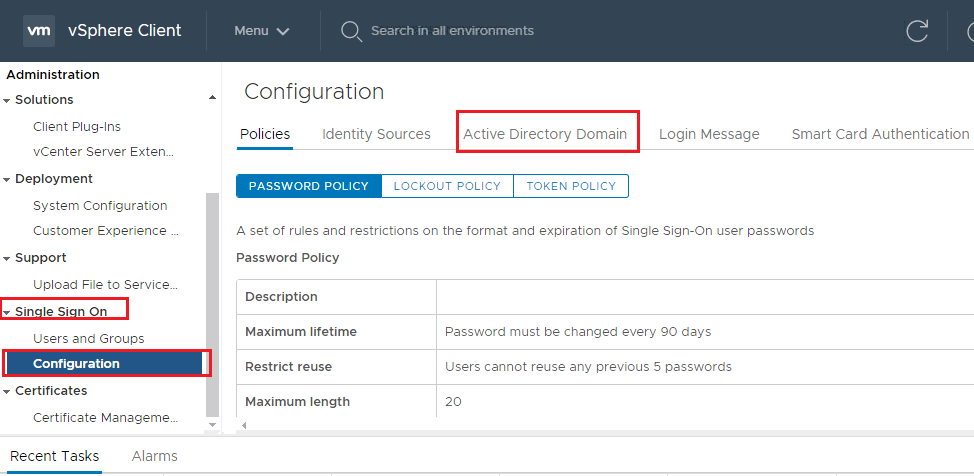
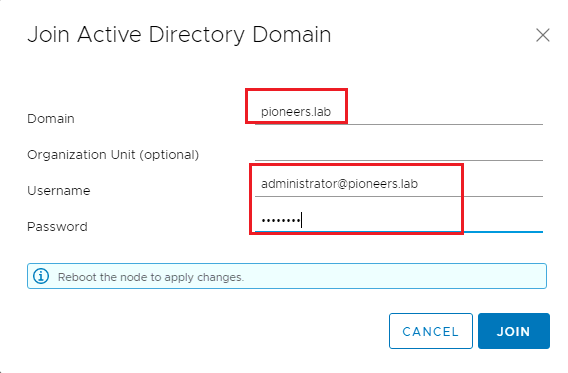
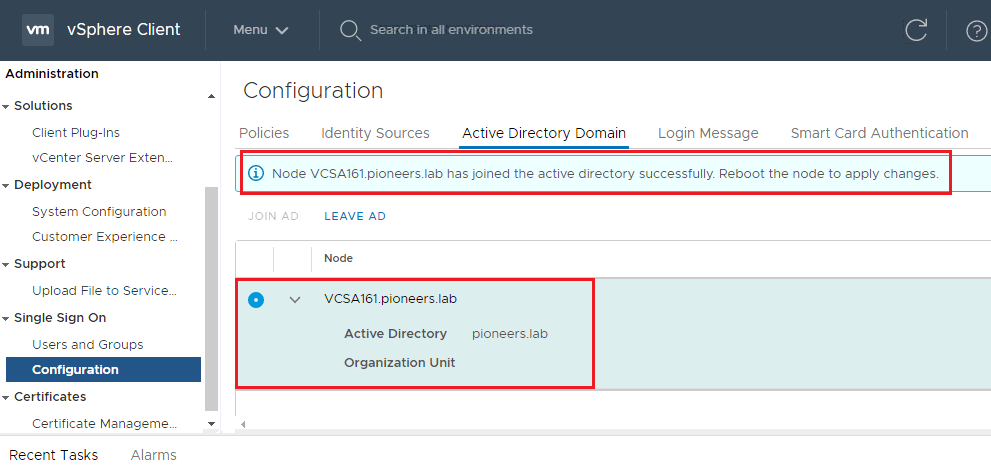
Step02: join VCSA server to AD
bosfore configure Vcenter as application to use Active Directory authentication : we have to join VCSA as server to active directory
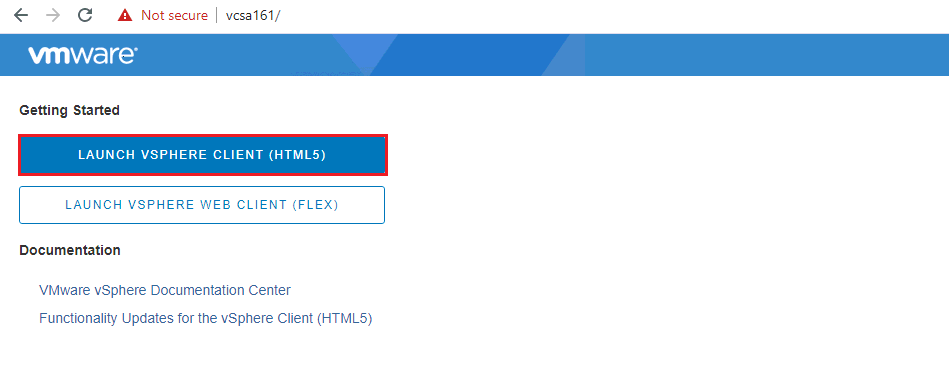
open VCSA management console : https://VCSA161:443
For Better View > Open Image in different TAB
For Better View > Open Image in different TAB
For Better View > Open Image in different TAB
For Better View > Open Image in different TAB
For Better View > Open Image in different TAB
For Better View > Open Image in different TAB
For Better View > Open Image in different TAB
For Better View > Open Image in different TAB
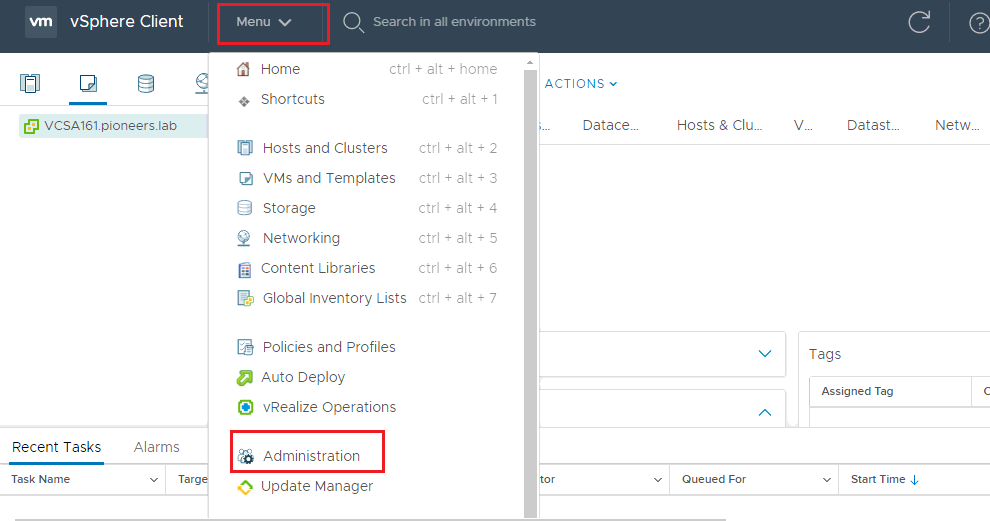
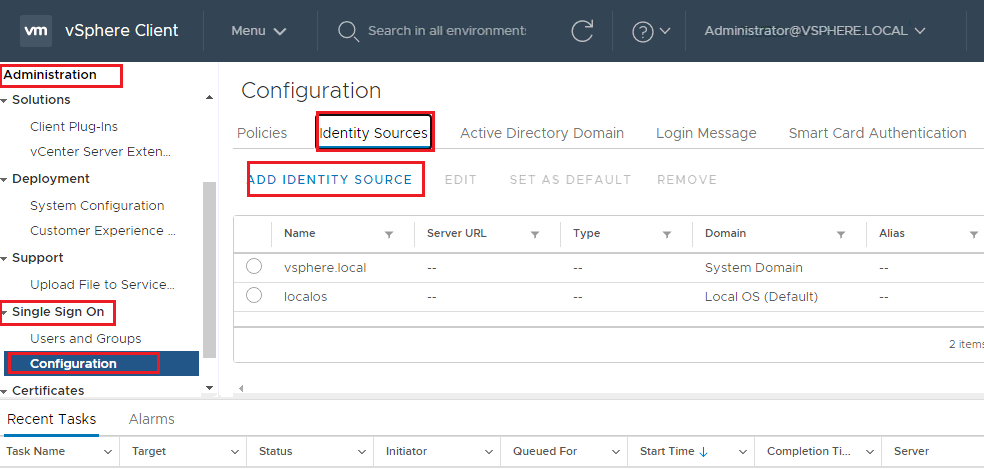
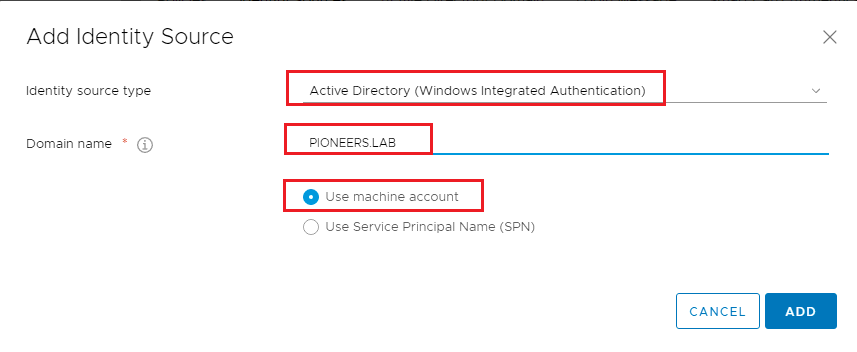
configure Vcenter Application with AD authentication
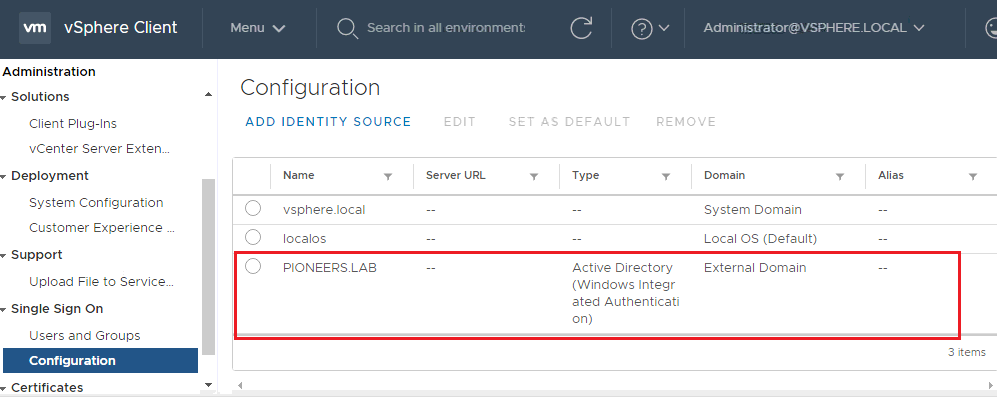
after we have sucessfully join VCSA to AD : it’s time to configure Vcenter to use AD authentication
For Better View > Open Image in different TAB
For Better View > Open Image in different TAB
For Better View > Open Image in different TAB
For Better View > Open Image in different TAB
post AD authnetication
As we have mentioned in previous article : vCenter is configured to use AD authentication
BUT ,,,,
Still NON of AD domain users is able to configure vCenter or manage ESXI and VCSA
Until we add permissions and configure RBAC [ Role based Access Control ]
please join us to next article to see how to accomplish RBAC settings